Invoices
Create an invoice from open dues, check the recipient and output it as a PDF.
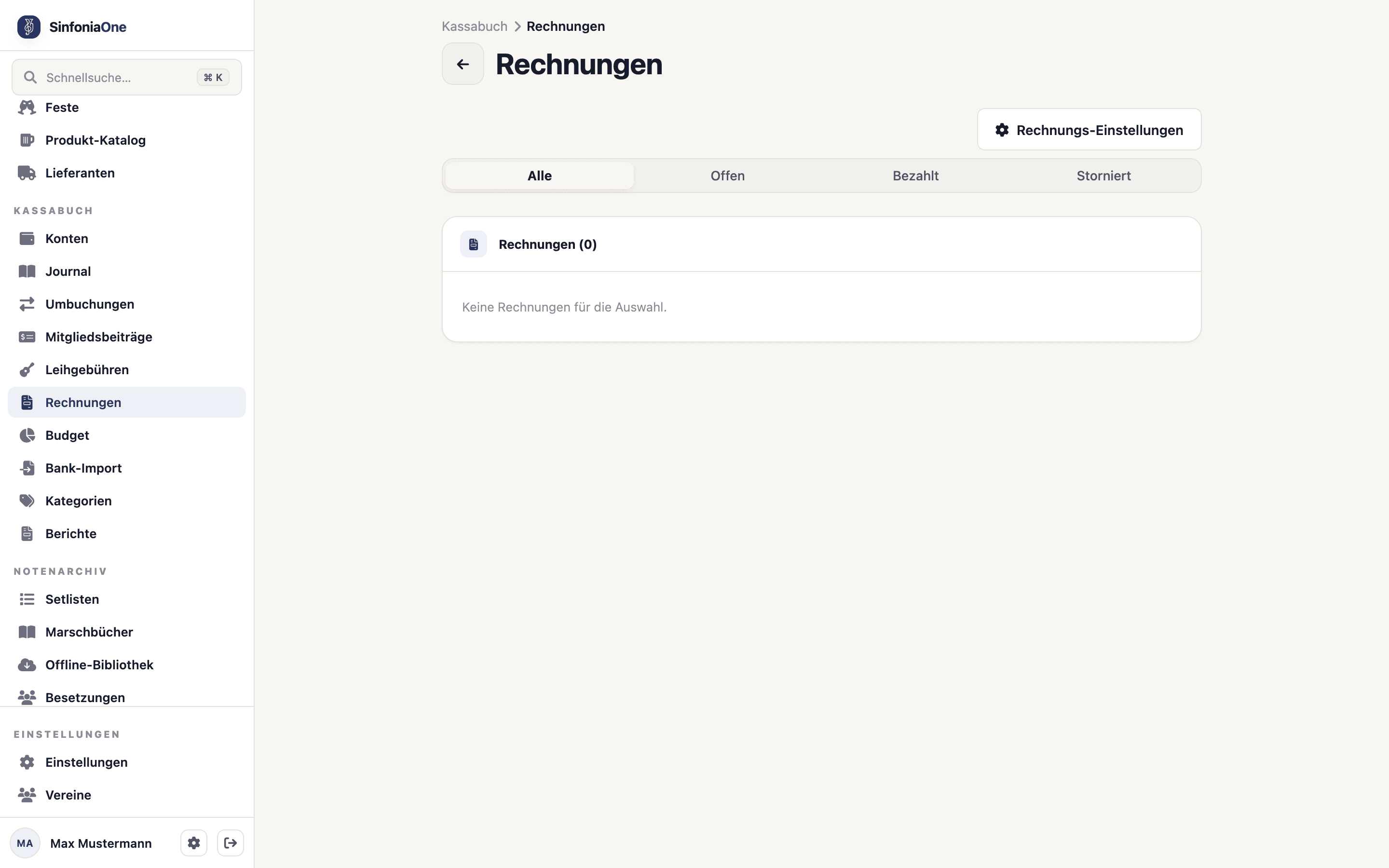
If your club issues someone an invoice – a supporter for their dues, say – you do that in the cashbook under Invoices.
Invoices grow out of open items
There is no free-form invoice editor in the cashbook. An invoice always grows out of an open item – one or more membership fees, typically a supporter's.
Creating an invoice
Generate the invoice
Select the open dues you want and tap "Create invoice". Vereinskastl combines them into a single invoice.
Check the recipient
The recipient is taken from the supporter’s billing data, but can be adjusted if needed – for example when the invoice should go to the parents of a young member. Via “Recipient” you change name, address and VAT ID for this one document only; the directory stays untouched.
Output as PDF
You generate the finished invoice as a PDF, which you can print out or send by email.
Issued invoices are frozen
Recipient name, address and VAT ID are stored as a snapshot on the invoice. If you change the supporter’s billing data later, invoices already issued stay as they are – a document that is already out there must not change retroactively.
Invoice settings
So that your invoices look consistent and correct, you store the invoice settings once. They then apply to all invoices:
- Number range – the scheme by which invoice numbers are assigned.
- IBAN – the account the amount should be transferred to.
- Payment term – by when payment should be made (for example "14 days").
- Footer – a custom text at the bottom of the invoice.
- Tax notice – a note on VAT, for example the remark that the club does not charge VAT.
Only a tax notice, no VAT accounting
VAT appears solely as a notice text on the invoice. The cashbook keeps no VAT accounting of its own – for a club's plain income and expense statement, that is the usual approach.
Several invoices at once
Tap “Select” to tick several invoices and book them as paid, void them or delete them together. See Working on several entries at once.